 Servey
Your Mac.
Wherever you are.
Leave your Mac at home. Use it from your iPhone or iPad, anywhere in the world.


- Sharp, readable screen
- Real terminal
- Private by design
- Works anywhere
Your Mac is somewhere. You are somewhere else.
That gap is the whole product. Here is what it looks like on an ordinary day.
The MacBook is upstairs and you are on the couch.
Open it on the iPad without getting up. The same desktop, the same apps, already signed in to everything.
The Mac mini is at home and you are at a cafe.
It has no monitor and does not need one. It sits on a shelf doing its job, and you reach it anyway.
A build was running when you had to leave.
It kept going without you. Rejoin the same session and read the log from exactly where it got to.
Your coding agent has stopped to ask a question.
Answer it from your phone and let the agent carry on, instead of losing the forty minutes it was mid-way through.
The file is on your Mac, not in a cloud folder.
Go and get it. Open the app that made it, export what you need, and send it on from there.
You are travelling and need one Mac-only app.
Xcode, Logic, Final Cut. Use the real one on the real machine rather than hunting for a substitute.
What Servey does
Crystal-clear screen mirroring.
On your own Wi-Fi, Servey streams your Mac at high quality: text stays sharp, movement stays smooth, and there is no noticeable lag. Pinch to zoom in and read the smallest detail.
- Text you can actually read
- Pinch to zoom into any detail
- Your whole screen, never cropped
Real mouse, keyboard & trackpad.
A purpose-built on-screen trackpad reaches every edge of your screen, with left/right click and a scroll control. The full keyboard is here too - including ⌘C, ⌘V, Esc, Tab, Return and Backspace.
- An on-screen trackpad built for fingers
- Left click, right click, drag and scroll
- Copy, paste, Esc and Tab
A real terminal, in your pocket.
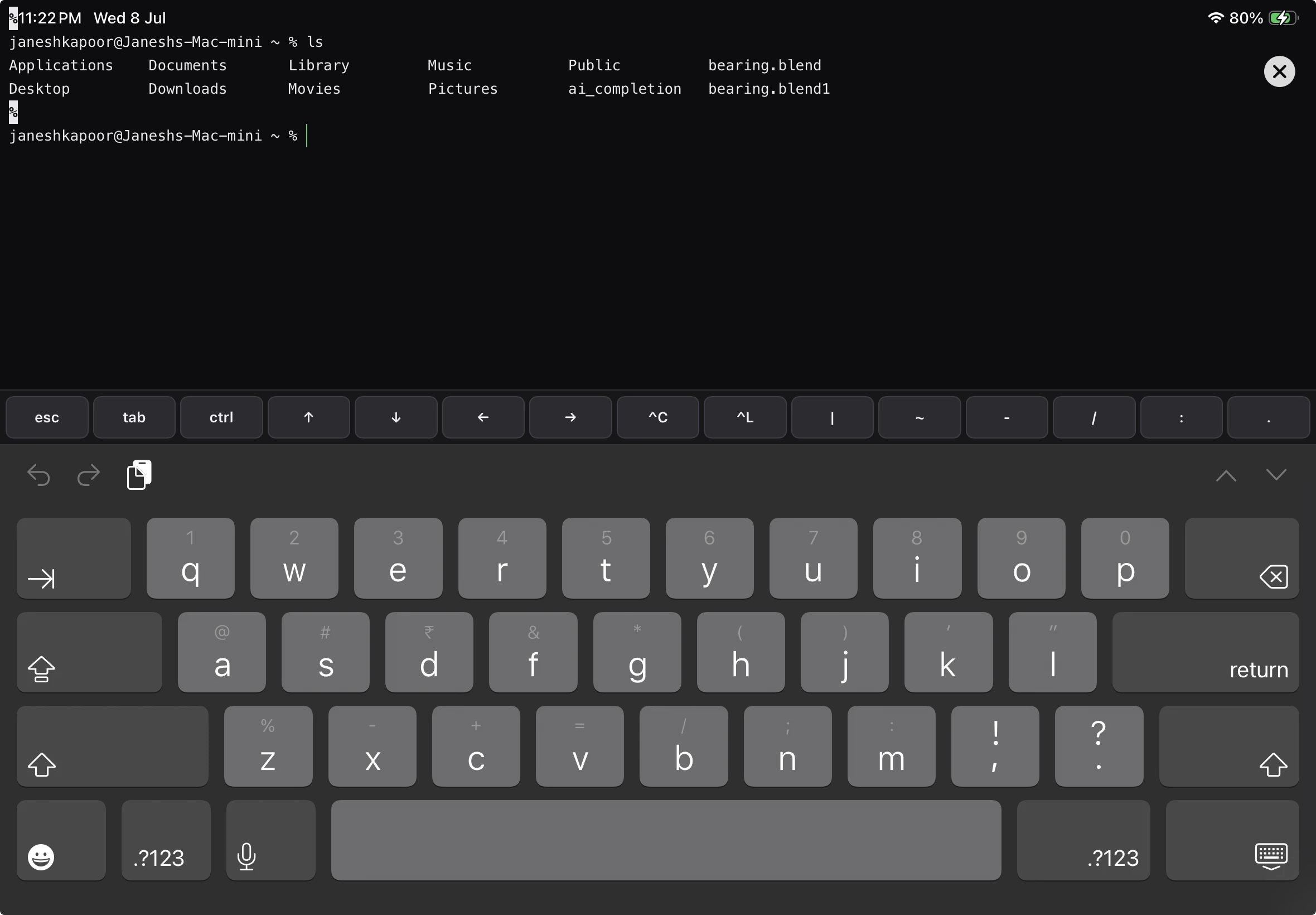
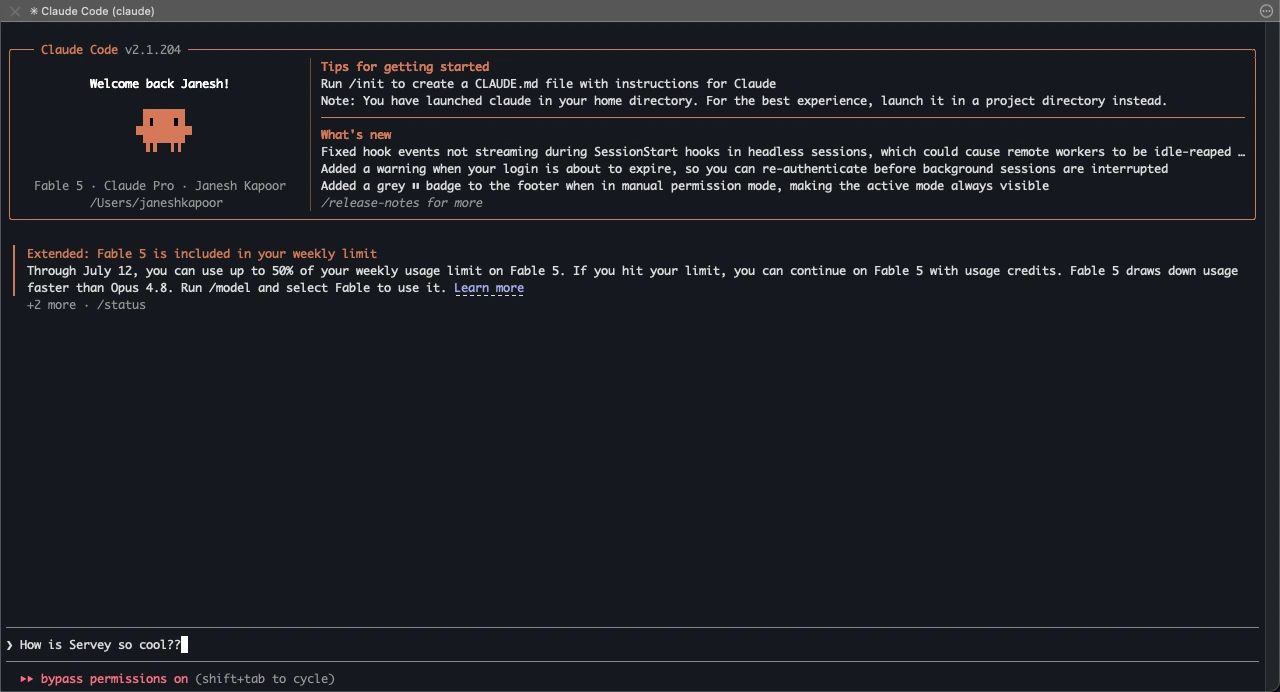
Not a toy - a genuine shell on your Mac, available over either connection path. Fix a build from the couch, tail a log on the train, or drive a headless Mac Mini from anywhere. And what you start does not stop when you put the phone down.
- A real shell, not a web console
- Works at home and away
- Built in, no second app
Your work keeps running.
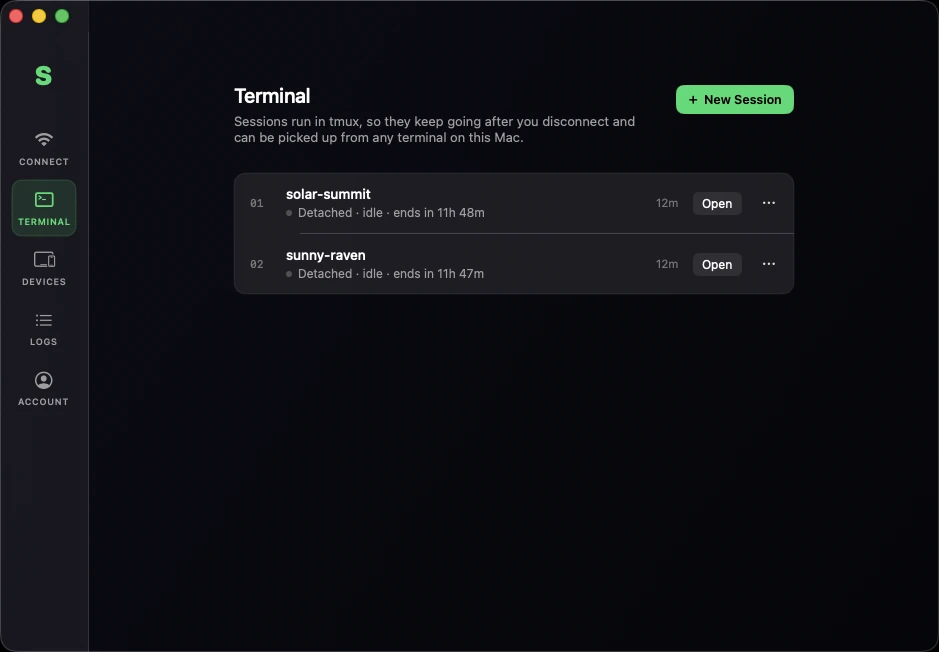
Every terminal session is a named session that lives on the Mac, not inside the app. Start a long build from the iPad, close Servey, lose signal, get on a plane - it is still going when you come back. Pick it up from the iPad, from the Mac, or from two devices at once - and if you ever stop using Servey, the same session is still there in the Mac's own Terminal.
- Named sessions that outlive the app
- Drop off, come back, still there
- Resume on Mac, iPad, or plain Terminal
Two paths, zero thought.
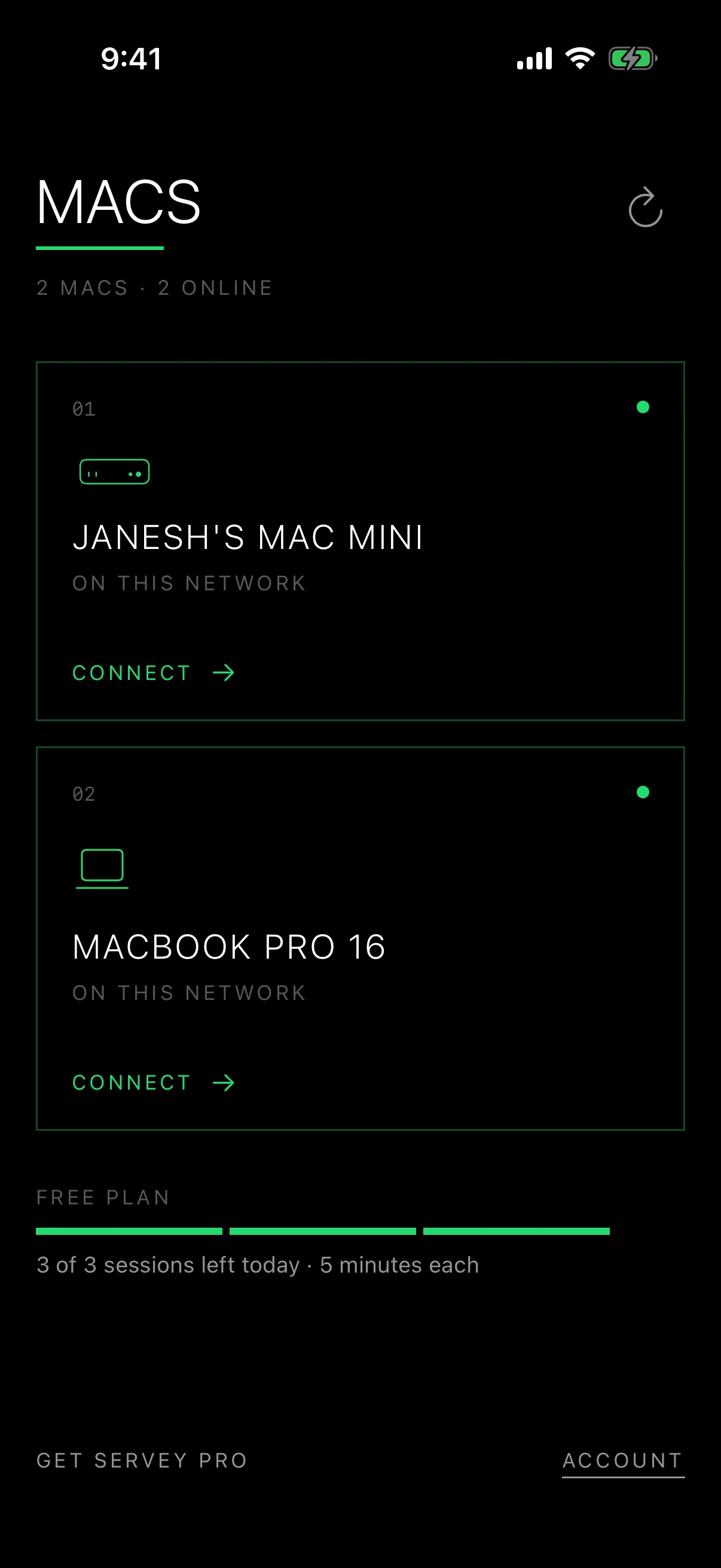
On the same Wi-Fi, Servey connects straight to your Mac with nothing in the middle. Somewhere else, it makes a private connection between your two devices. It picks whichever works on its own, and if you walk out of the door and drop onto mobile data mid-session it reconnects instead of dropping you.
- At home: a direct connection
- Away: encrypted, device to device
- Works on strict mobile networks
- Survives switching to mobile data
Direct connection · no cloud in the middle
End-to-end encrypted · direct between your devices whenever your network allows it
Two locks, not one.
Sign in with Google on both devices, then set a master password on your Mac that every device has to produce before it can connect. New devices wait for you to approve them on the Mac itself, and you can revoke any of them at any time. Your screen goes straight between your two devices, encrypted the whole way. When a network refuses to allow that, it goes through our own server rather than a third party's.
- A master password, set on your Mac
- Every new device approved by you
- Direct when it can, our own server if not
End-to-end encrypted. Account-scoped. Peer-to-peer.
- A master password, set on your Mac
- Every new device approved by you
- Direct when it can, our own server if not
Adaptive quality, full frame.
Servey keeps adjusting to whatever connection you are on, so the picture stays smooth on a weak signal without ever cropping your screen or squashing it out of shape.
- Adjusts to your connection
- Never crops your screen
- Smooth on a weak signal
The couch, the café, the departure gate - your whole desktop and a real terminal, still running, wherever you happen to be.
Built for the moment you are not at your desk.
Different jobs, the same gap: your Mac is somewhere else, and the thing you need is on it.
Developers
A build is running on the Mac at your desk, and you are not at your desk.
Tail the log, restart the job, or open a simulator from your phone - in your real environment, with your toolchain and credentials already in place.
For developersAnyone running AI agents
Your coding agent has been working for forty minutes and has stopped to ask a yes-or-no question.
See what it is doing, answer the prompt, and let it carry on - without walking back to the desk to press one key.
For AI agentsHeadless Mac and home lab owners
The Mac mini has no monitor, no keyboard, and lives on a shelf behind the router.
Its screen and its shell on your iPad, through the login screen and back after a reboot, with nothing exposed to the internet. A MacBook counts too - Servey can drive one with the lid shut, no dummy HDMI plug required.
Headless Mac miniEveryone else with a Mac
The file, the screenshot, the one click you need is on a Mac you left at home.
Your whole desktop on your iPhone, aspect-correct and sharp enough to actually read - so you just do it and move on.
Control Mac from iPhone
Up and running in three steps.
No VPN. No port forwarding. No vendor accounts to manage. Nothing exposed to the internet, and nothing to configure on your router.
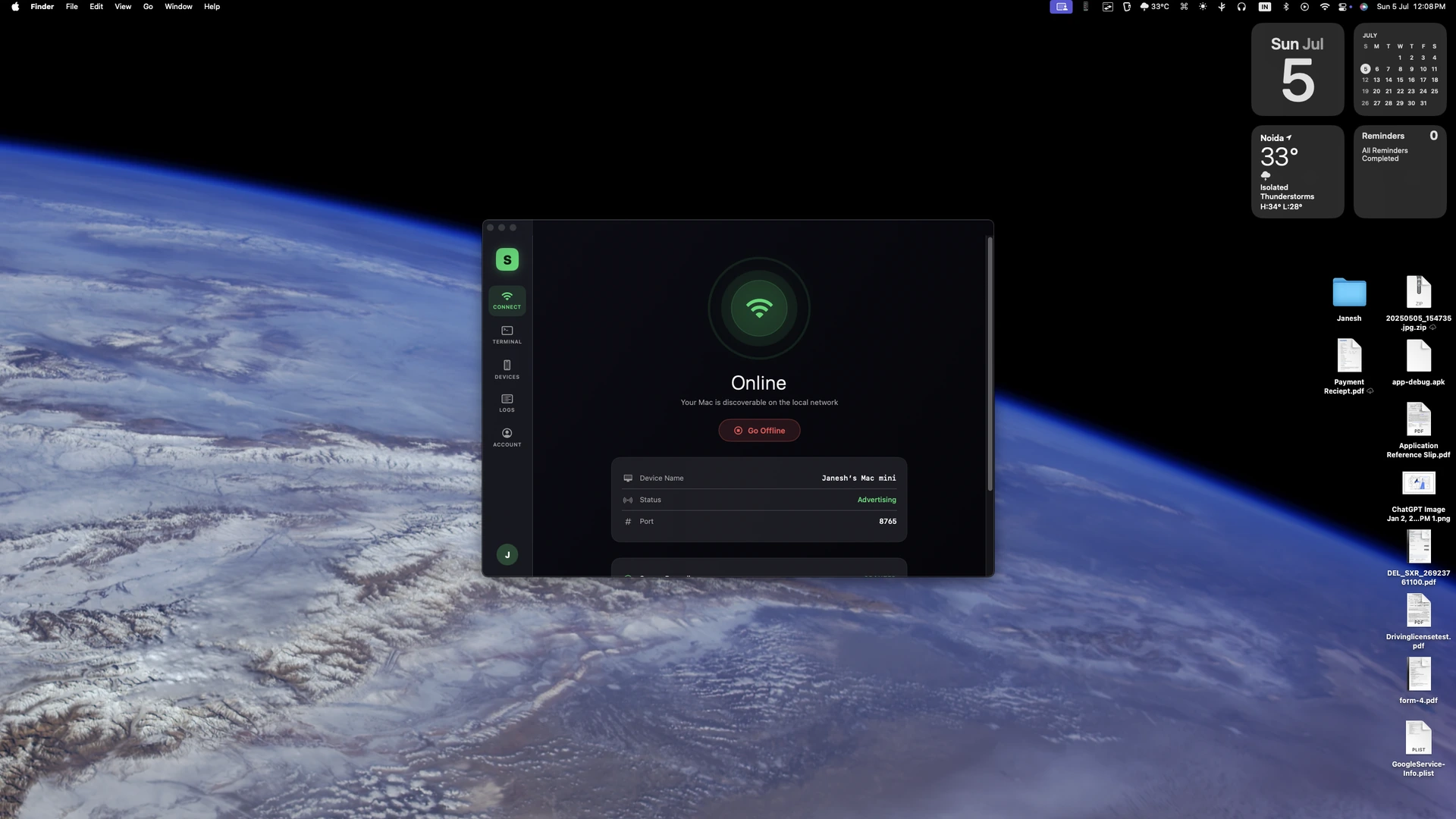
Sign in, then set a master password
Install Servey on your Mac and your iPhone or iPad and sign in with Google on each. On the Mac you then set a master password. Every device has to produce it before it can connect, and there is deliberately no way to skip it.
Grant two permissions, go online
macOS asks for Screen Recording and Accessibility, because mirroring your screen and moving your cursor are exactly what those two govern. Switch your Mac online and it is reachable by your own devices - still no VPN, no port forwarding, no static IP.
Approve the device, then connect
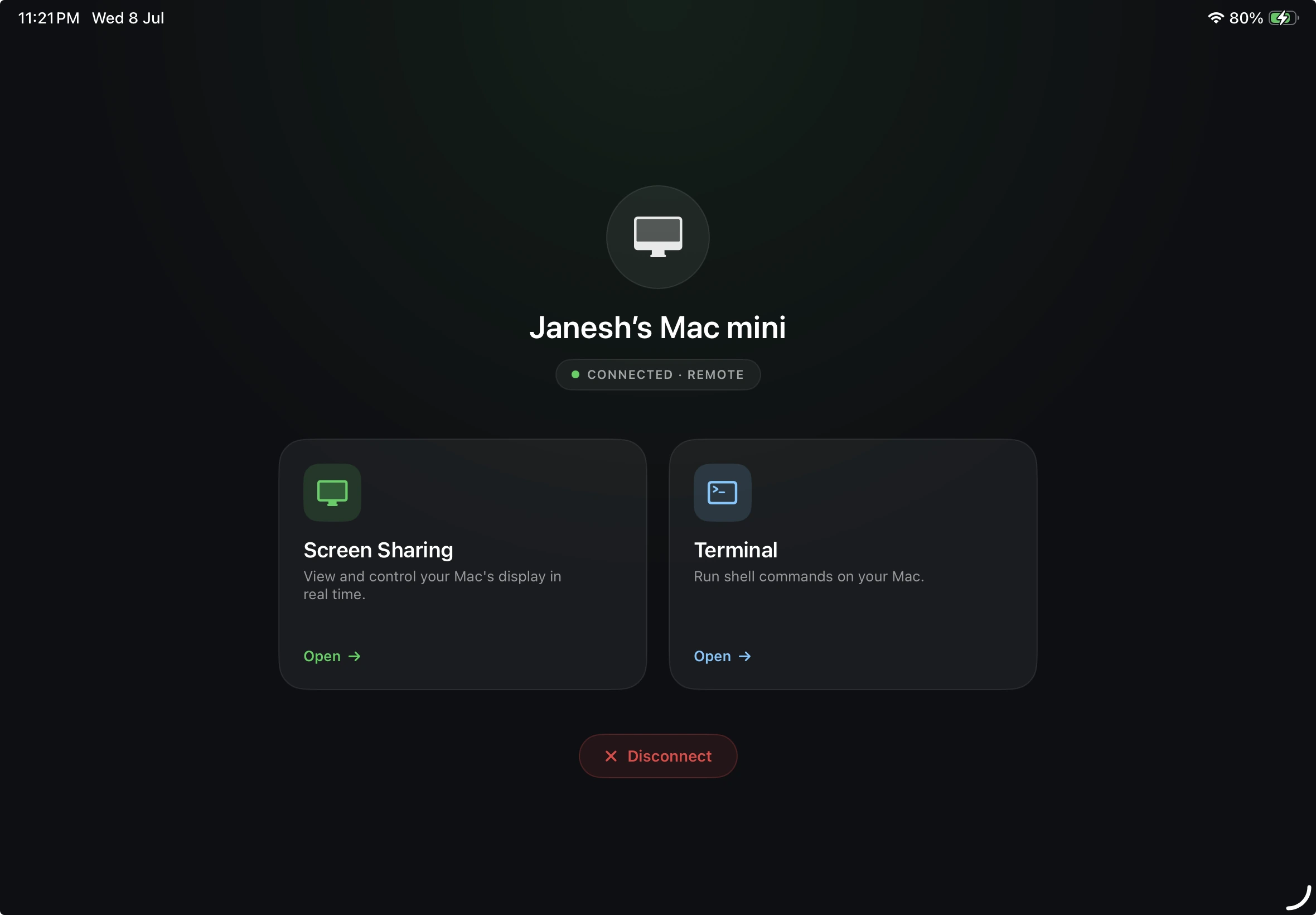
Your Mac appears on your iPhone or iPad by itself. The first time a new device asks, you approve it on the Mac. After that, tap to open a live window and take the screen or the terminal - Servey picks the best path for you.
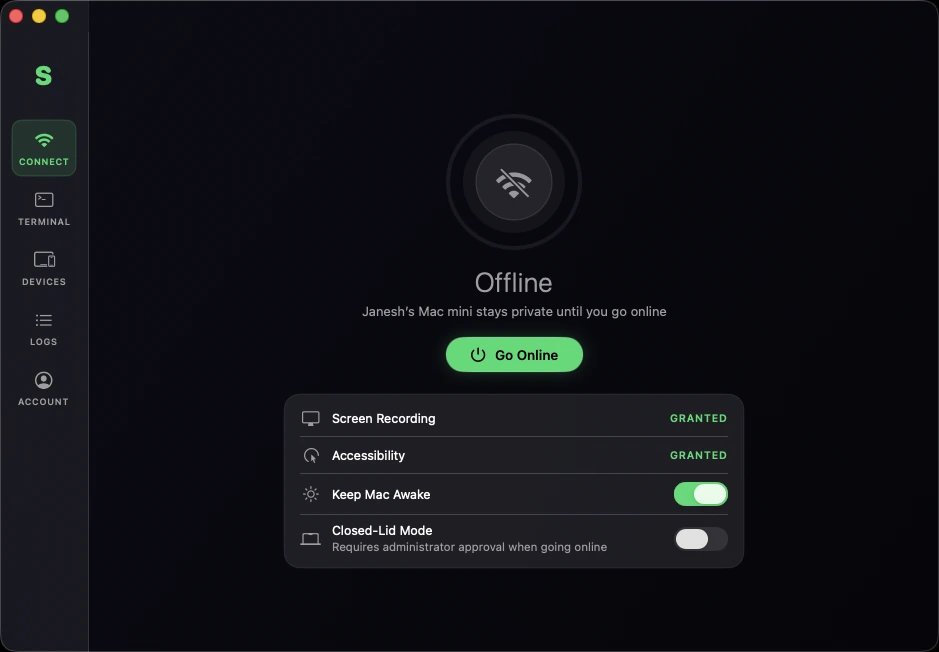
The Servey host on your Mac. Permissions granted, one button from going online - and private until you press it.
Servey vs. traditional remote tools.
Most remote-desktop apps are cross-platform ports with the Mac experience bolted on. Servey was built the other way around.
Reading your screen
Soft, blurry text you end up squinting at
Sharp enough to read, and you can pinch to zoom in
Getting set up
Set up a VPN, forward ports, or make a vendor account
Sign in with Google on both devices. Nothing to change on your router.
Who sees your screen
Your video usually travels through the vendor's servers
Straight between your own devices. If your network blocks that, through our server, not someone else's.
Getting to a command line
A separate app, or not possible at all
A real terminal, one tap from the screen
Leaving mid-job
Close the app and whatever you started stops with it
Your work keeps running on the Mac. Come back later and pick it up.
Using it on a phone
A desktop mouse pointer squeezed onto a touchscreen
A trackpad and keyboard designed for fingers
Trying it
A countdown trial, or a free plan that accuses you of business use
Free: three five-minute sessions a day, no card
Comparison reflects Servey’s architecture and typical traditional remote-desktop tools (VNC/RDP, TeamViewer). No benchmark numbers are claimed.
Simple pricing. Pick your plan.
Start free with no card at all, add unlimited terminal time, or unlock the full experience with screen mirroring. One flat monthly price - no add-ons, no surprises.
Free
Try everything Servey does. No card, no countdown.
- Everything Servey does, five minutes at a time
- Three sessions a day, reset at local midnight
- No card and no trial that expires on you
- Upgrade the day you want longer sessions
Terminal
A shell on your Mac that keeps running without you.
- Unlimited terminal time - no five-minute cap
- Named sessions that keep running after you disconnect
- Reattach from your iPad, your Mac, or any terminal app
- Works on your local network and remotely, automatically
Full access
Most popularScreen mirroring and terminal - everything Servey does.
- Everything in Terminal, plus:
- Crystal-clear full screen mirroring of your Mac
- Real mouse, keyboard, and an on-screen trackpad
- Adaptive quality with pinch-to-zoom, never cropped
Start free, no card required. Paid plans are simple monthly pricing, and you can cancel anytime from the Account screen in the app. Buy on the Mac, or as an in-app purchase on iPhone and iPad - the plan follows your account either way.